Visualizing Workflow: The Kanban Board
If a standard list feels too rigid and a mind map feels too expansive, the Kanban Board offers the perfect middle ground. Originating from lean manufacturing, a Kanban board is a highly visual workflow management tool that fundamentally changes how you interact with your data.
Instead of displaying information as a top-to-bottom list, a Kanban board turns your individual records into interactive "cards" and organises them into vertical "columns" (or buckets) based on specific criteria.
Enhancing Data Reordering Through Drag-and-Drop The true power of a Kanban board lies in how it enhances data manipulation. In a traditional database, changing a task's status from "In Progress" to "Review" requires clicking into the record, finding a dropdown menu, selecting a new option, and saving.
A Kanban board makes the process tactile. You simply click the card, drag it across the screen, and drop it into the "Review" column. This spatial act of moving the card instantly and automatically updates the underlying data structure behind the scenes. It makes organising, reprioritising, and updating your data feel completely frictionless.
How the Kanban View Works in Mind Dump
In keeping with Mind Dump's philosophy of separating data from presentation, the Kanban View takes the exact same tasks you created in your lists or outlines and reimagines them as a dynamic, draggable board.
Mind Dump provides two distinct ways to use the Kanban View, adapting perfectly to your current needs:
1. Grouping by Due Dates (Chronological Execution)
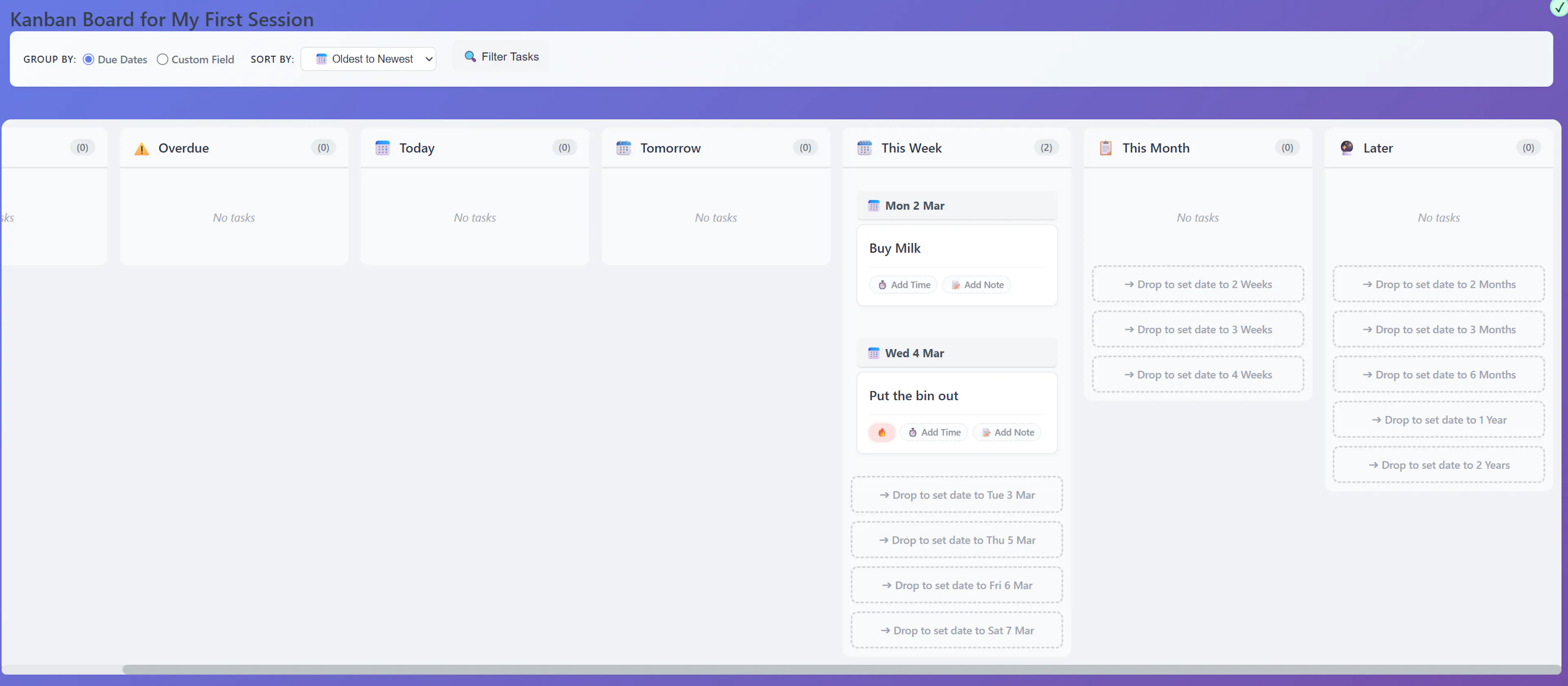
By default, the Kanban board acts as a tactical time-management tool. It automatically generates columns based on your timeline: Overdue, Today, Tomorrow, This Week, This Month, Later, and No Date.
If you realise a task scheduled for "tomorrow" needs to happen "today," you don't need to open a calendar picker. You simply drag the card from the "Tomorrow" column and drop it into "Today." Mind Dump instantly recalculates and updates the task's actual due date in your database.
2. Grouping by Custom Fields (Pipeline Workflows)
If you want to track a process rather than a timeline, Mind Dump allows you to pivot the entire board based on your Custom Fields.
If you added a "Dropdown" custom field to your session (for example, a "Project Phase" field with options for Planning, Drafting, Editing, Published), you can tell the Kanban board to group your tasks by that specific field. The board will automatically create a column for each of your dropdown options. Dragging a card from "Drafting" to "Editing" instantly updates that specific custom field value for the task.
Rich Data at a Glance
Even though they are compact, Mind Dump's Kanban cards are designed to give you maximum context without requiring extra clicks. Each card visually displays:
-
Urgency: Marked clearly with 🔥 for Urgent or 🟧 for Not Urgent.
-
Time Estimates: Badges showing exactly how long the task should take (e.g., ⏱️ 45m).
-
Notes: A quick indicator (📝) showing if the task contains any extended notes or linked emails.
-
Tags: Your custom coloured tags visible right on the card face.
Furthermore, the board respects your preferences. You can sort the cards within each column (e.g., Oldest to Newest, A to Z), and apply Mind Dump's unified filters to hone in on exactly what you need to see.
Below is a screen shot of the Kanban for the data used in the Quick Start section of this documentation