Exploring the Task List: The Date-Centric Standard View
The absolute backbone of Mind Dump is your tasks, which are presented to you as a highly interactive list.
Depending on the type of Session you are using, there are two basic list formats: the Standard View (which functions as a Chronological View for Date-Centric Sessions) and the Alphabetical View (for Knowledge Base/Alpha Sessions). There is also a hierarchical Project View, which we will discuss later when we look at sub-tasks.
For now, we will focus on navigating the Date-Centric Standard View.
The List Header and Sub-Groups
At the very top left of the list, you will see the name of your current view. Next to this is the Sort By drop-down menu. If you have added applicable custom sort fields (such as a Notification Date) to your session, you can change the sort order here; if no applicable sort fields exist, this control will be disabled. Besides this, a Task Count badge displays exactly how many tasks are currently visible in your view.

Beneath this header, your tasks are organised into chronological Sub-groups (such as Overdue, Today, Tomorrow, etc.). Next to each sub-group title, you will find two checkbox icons:
-
Select All (☑️): Selects every task within that specific sub-group.
-
Deselect All (⬜): Clears your selection for that sub-group.

The Anatomy of a Task Card
Below the sub-group titles is your actual task list. Every task is displayed inside an adaptable card (we will explore customising these cards later on). Working from left to right, here is what you will find on a standard task card:

-
Task Checkbox: Located on the far left, this allows you to select single or multiple tasks to perform bulk operations.
-
The '+' Sign: Used specifically for adding child or sub-tasks directly beneath the current item. (We will cover sub-tasks in detail later).
-
Task Name (Inline Editing): This is an actively editable field. Simply clicking directly on the task name opens up a text box, allowing you to edit the text on the fly without opening any menus.
-
Complete Task (Green Tick): Clicking the tick inside the green circle completes the task. Completed tasks are immediately flagged on the database and removed from your active list view. You can always recall them by changing your view filters, and you can easily revert a completed task back to active status if needed.
-
Edit Task ('E' in Pale Blue Circle): Clicking this opens the comprehensive Edit Modal. Every single detail of a task—including notes, custom fields, and links to other tasks—is editable through this modal. (These are advanced topics we will review later).
-
Urgency Icon: Visually indicates the priority of the task. A blue/grey circle (🔵) indicates Normal urgency, a fire icon (🔥) indicates Urgent, and an orange/red square (🟧) indicates Not Urgent. Clicking this icon opens a quick popover menu allowing you to change the urgency instantly.
-
Notes Icon: If you have added notes to the task, this icon will display a number indicating how many notes exist. Clicking the icon opens a dedicated notes modal where you can view, edit, or add new notes.
-
Date Badge: Displays the day or date the task is due. You will often view this displayed day in the context of the sub-group it sits under (e.g., a "Wednesday" badge sitting under the "Next Week" sub-group).
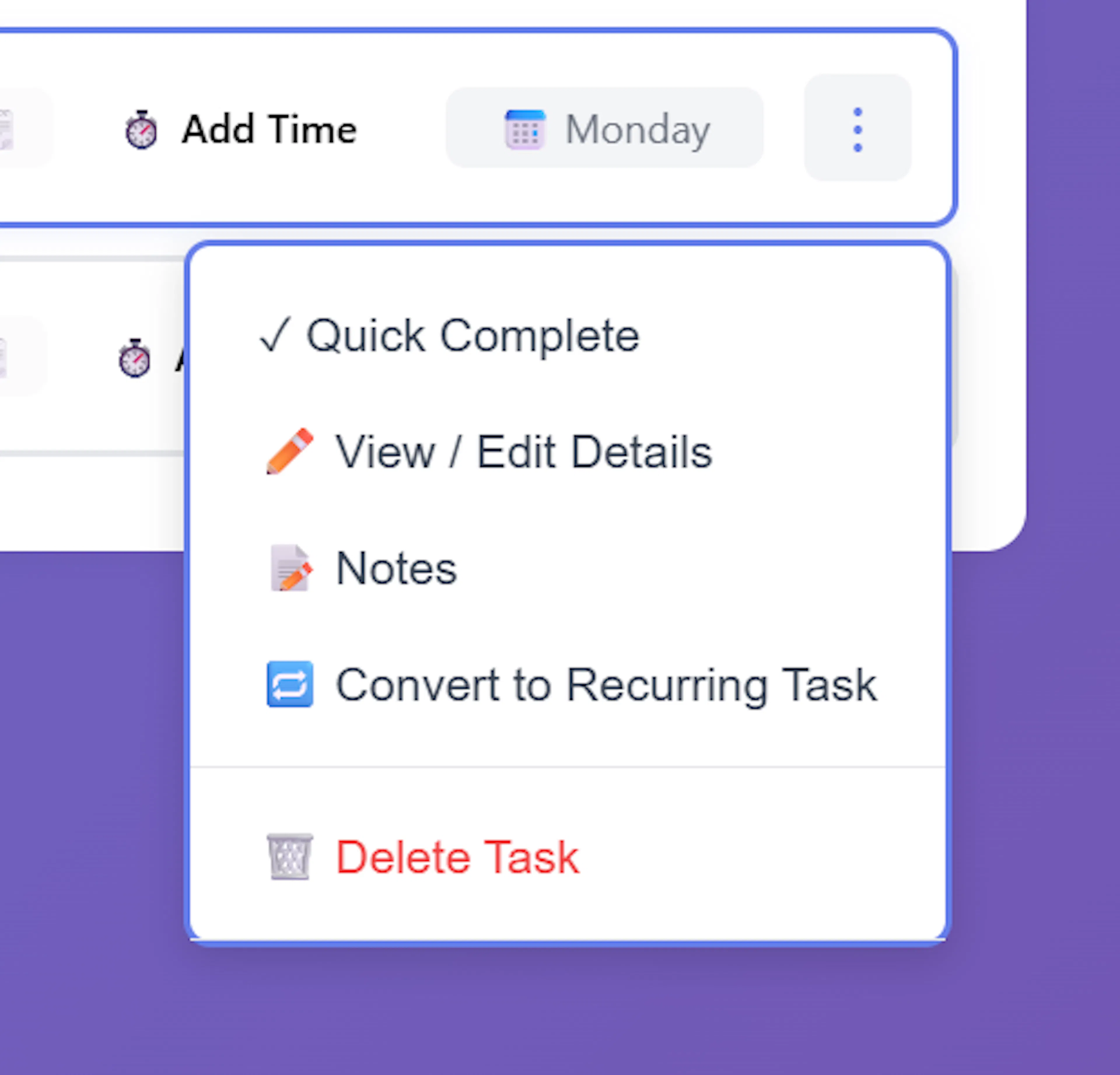
The 3-Dot Menu (⋮): Located on the far right, clicking these three vertical dots opens a task control panel providing quick access to five key functions:
-
Task Completion: Performs the exact same function as the green tick icon.
-
View/Edit Task Details: Performs the exact same function as the pale blue 'E' icon.
-
Notes: Performs the exact same function as the notes icon.
-
Convert to Recurring Task: A powerful feature that allows you to easily transform the current one-off task into an automated, date-recurring task (we will explore recurring tasks deeply later on).
-
Delete Task: This function permanently removes the task and all of its associated notes from the database to keep your system tidy. Please do not confuse this with Task Completion. They are two entirely different operations, and a deleted task cannot be recovered.
There are sorting and filtering features we will explore later.