The Complete Picture: View/Edit Details
In the standard view, we see a list of the tasks inside a session. The tasks are presented in adaptable task cards and include the task name along with several badges to visually explain the state of each task. While this information provides great insight at a glance, it naturally doesn't include everything. As we will explore later, you can customise the task card to include other details, but unless the session is extremely simple, it is highly unlikely you will want to enable all of the details at once and clutter your view.
To see absolutely everything associated with a record, you need to open the View/Edit Details modal.
Full Editing Capabilities
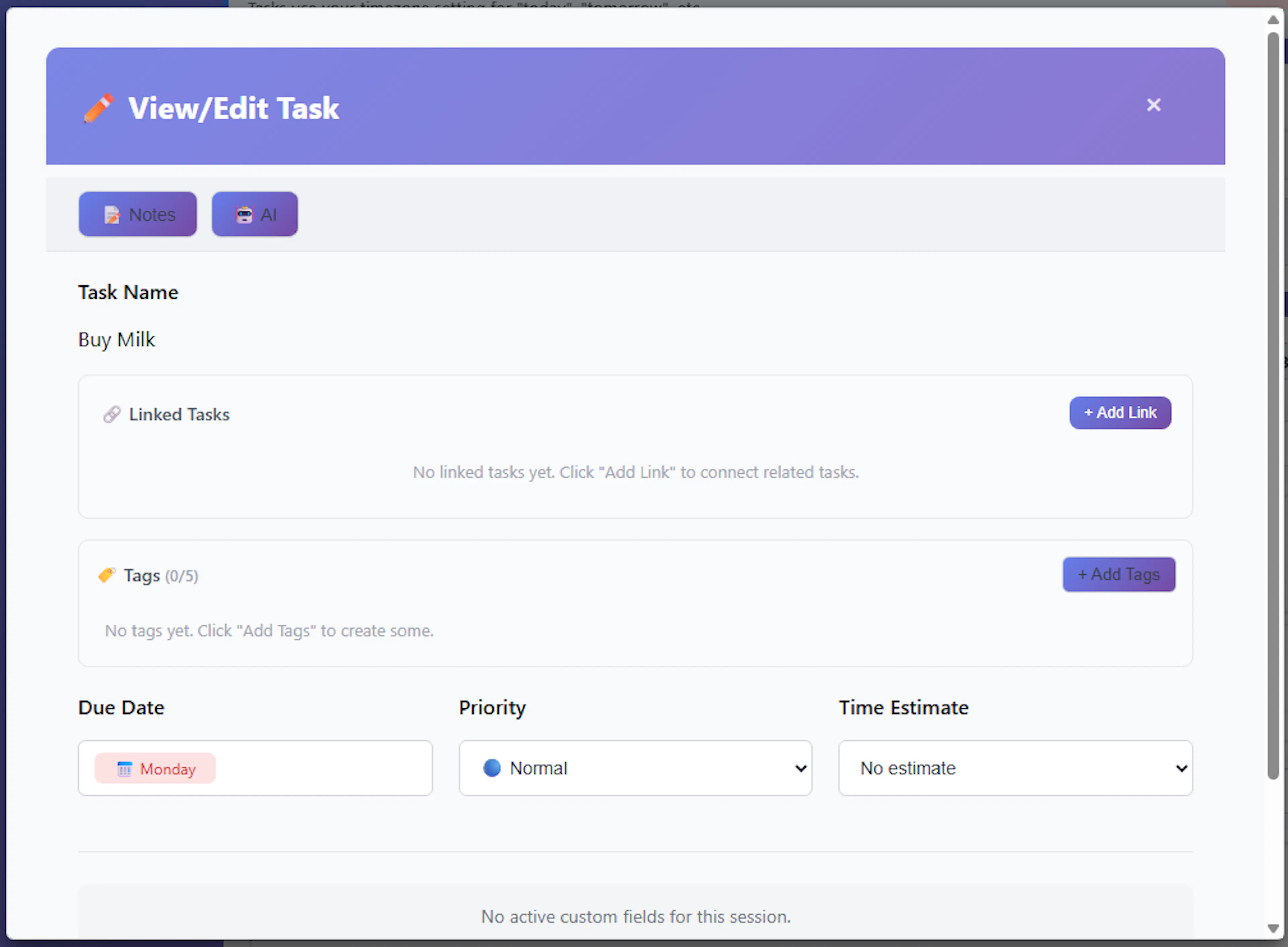
The View/Edit Details modal is the comprehensive hub for an individual record, enabling the editing of every single field, along with cross-session linking and note management.
When the modal opens, all core fields (like Task Name, Due Date, Priority, and Time Estimate) and all Custom Fields assigned to the session are displayed fully populated. You can edit any field simply by clicking into it and altering its values.
When your updates are complete, you simply click the 💾 Save Changes or Cancel buttons at the bottom of the window to either commit your edits to the database or abandon them and close the modal safely.
Expanding Context: Notes and Links
Beyond basic data entry, the modal provides dedicated controls for managing the broader context of your task:
-
View/Edit Notes: A dedicated 📝 Notes button sits at the top of the modal, allowing you to instantly open the notes interface to view the task's activity stream, read historical updates, or log new information. See Task Notes
-
Task Linking: The modal includes a section to manage links to other tasks. This allows you to bidirectionally connect related records across different sessions to build a comprehensive knowledge map.
-
Tag Entry: The modal also features a dedicated section for tag management. This allows you to easily view, add, or remove multiple categorization tags directly from the record's profile, ensuring your tasks stay properly organized within your broader taxonomy. See Tags and Creating & Using Tags
Advanced Integrations: Email and AI
Depending on your system configuration, the View/Edit Details modal also acts as a launchpad for powerful external workflows:
-
Direct Emailing: If the Mind Dump emailing system (SMTP) is configured by your administrator and the current task contains a populated Email custom field, an 📧 Send Email button will become available. This feature makes it possible to compose and send an email directly from the task. Even better, the outgoing email will automatically be captured and appear in the task's notes list as part of the activity stream, preserving a perfect record of your communications.
-
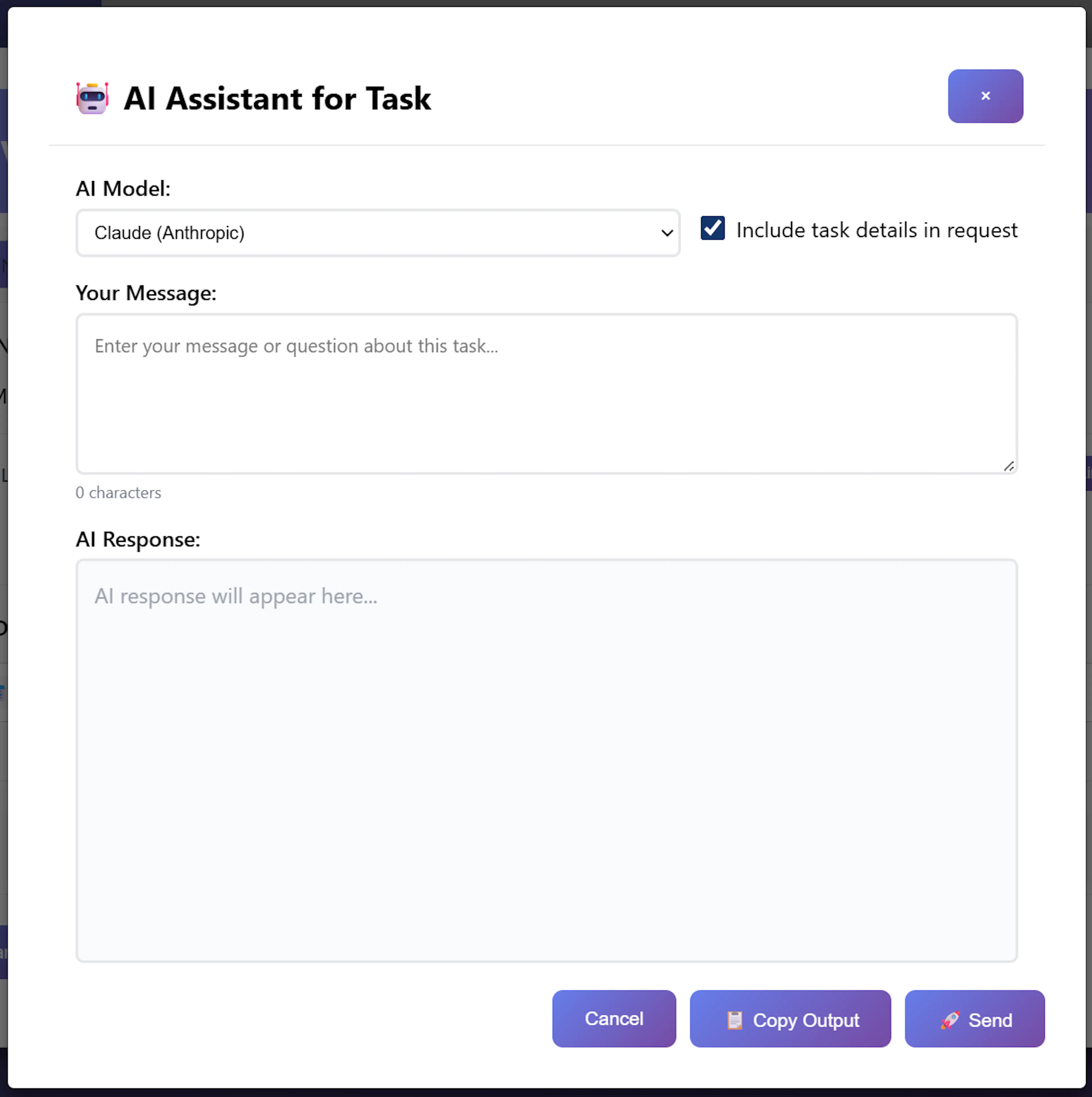
Task AI Assistant: Finally, if AI services are configured for your account, you will also see a 🤖 AI button. We will discuss the AI features in much greater depth later in this documentation, but its principal purpose here is to leverage the task's contents and notes. You can use this feature to break down the meaning of a complex task, summarise long histories, or intelligently extract information relevant to the record.