Searching for Tasks
Searching for tasks in Mind Dump is a compelling feature designed to help you instantly locate information. While there are several advanced ways to filter your workspace, this quick start guide focuses on the most fundamental search features so you can start navigating your application immediately. We will explore advanced filtering, tag searching, and time estimates in later sections.
The Primary Search Box Locate the Search Tasks text input in the main sidebar. This is your primary hub for data retrieval. To search for tasks that match a particular word or phrase, simply type your search term into this box and press Enter.
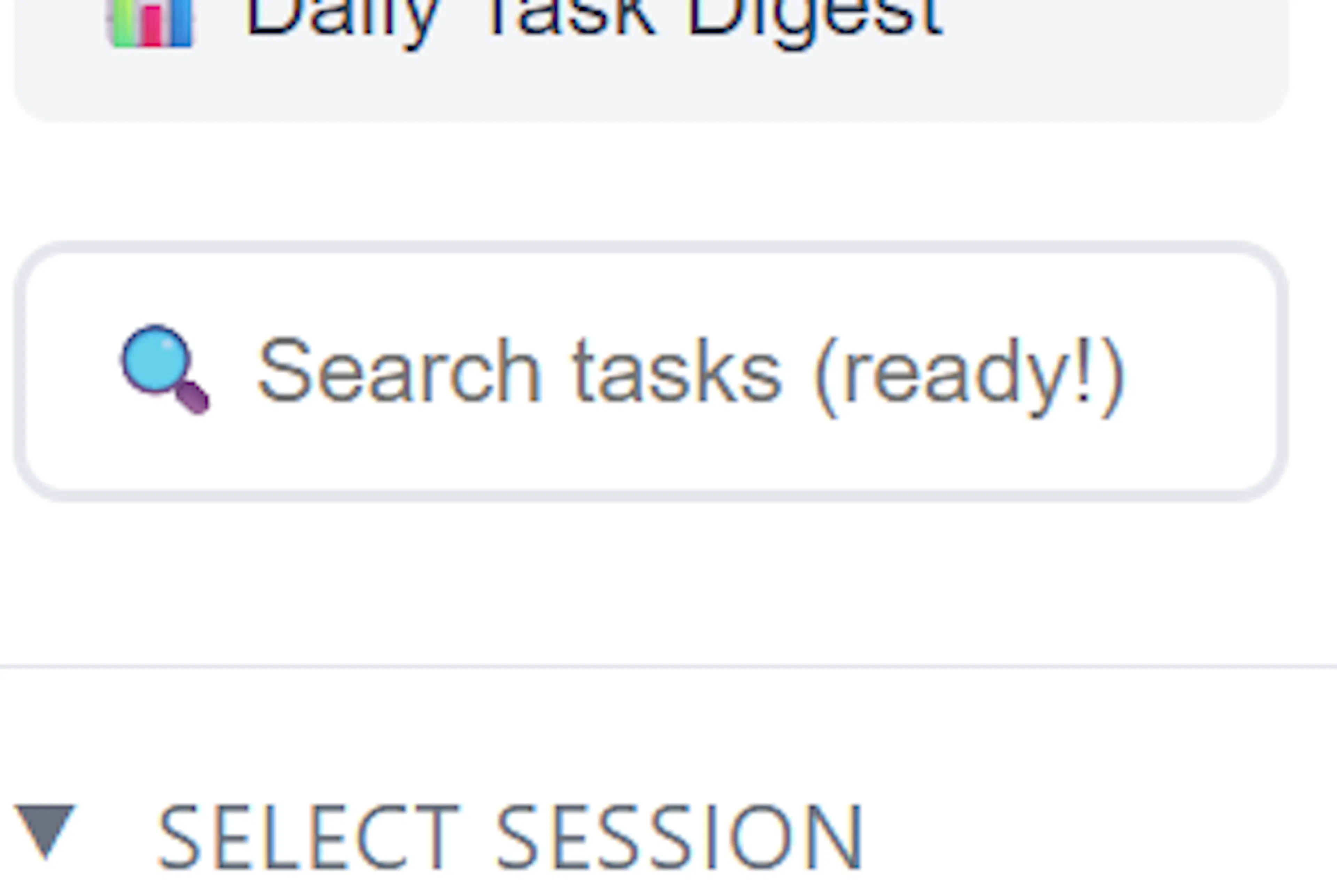
Comprehensive Partial Matching Mind Dump uses a comprehensive, partial-match search approach.
-
Partial Words: You do not need to type the entire word. Searching for "Bus" will successfully match "Bus", "Business", and "Omnibus".
-
Deep Searching: The search engine doesn't just look at the task's title. It digs deep across the task name, all of its custom fields, and its historical notes. This ensures that your search term is weeded out regardless of where it is hiding in the record.
Understanding Search Results (Match Badges) When you press Enter, the task list instantly updates to show all records where there is a hit. However, this comprehensive deep-search can sometimes be slightly confusing: if the match is located deep inside a custom field or a long note, it might not be immediately obvious why that specific task is showing up in your results.
To make it easy to understand your searched list, Mind Dump displays Match Source Badges directly on the resulting task cards. These coloured badges explicitly tell you where the match was made (e.g., in "Notes" or "Custom Fields"). By clicking on any of these badges, you will be taken directly into the View/Edit Details screen so you can inspect the data further and see exactly what matched.
Advanced Search & Quick Filters For highly specific queries, there is an Advanced Search feature that gives you the ability to configure your search criteria in strict detail.
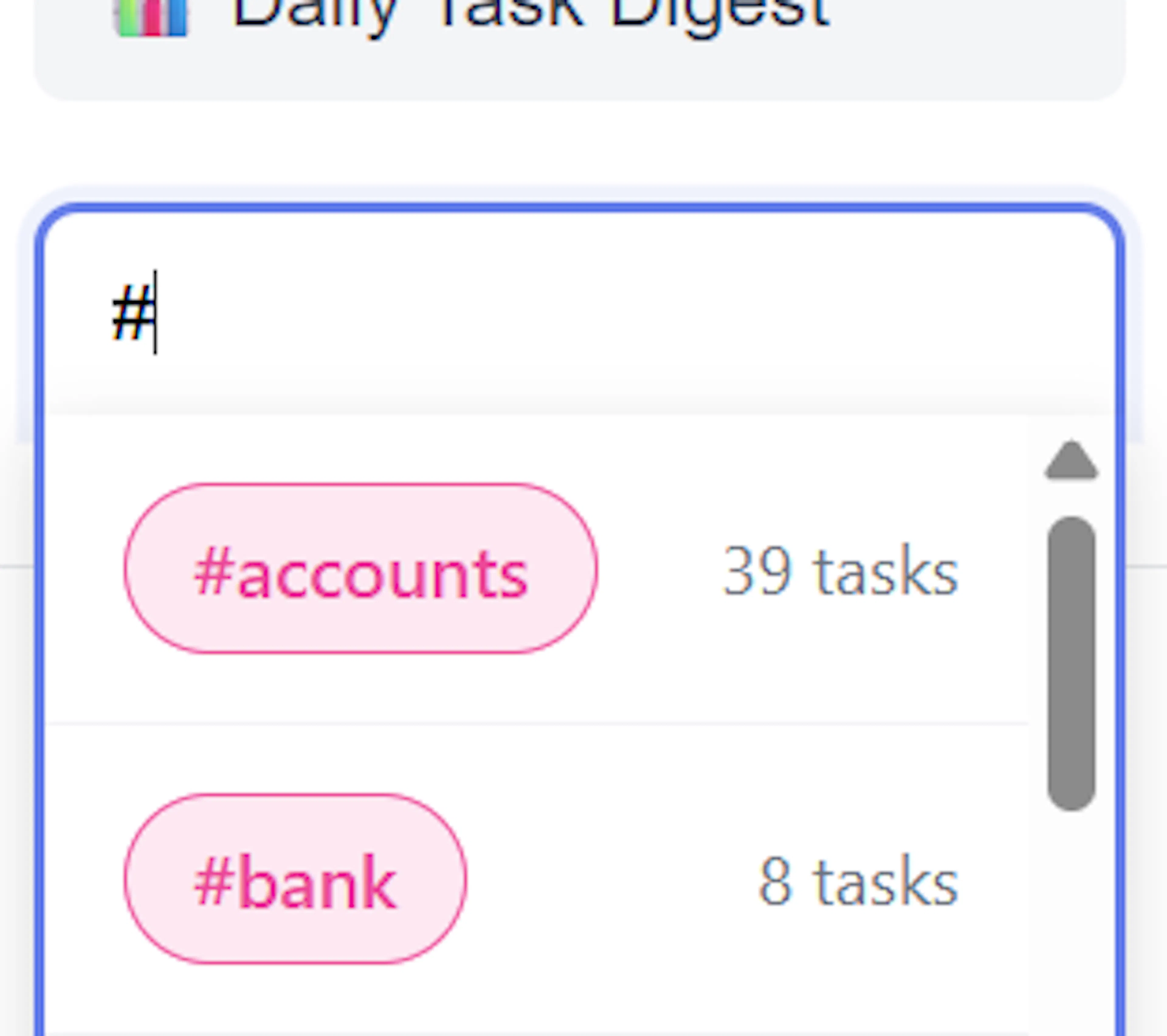
Additionally, the main search text field supports powerful keyboard shortcuts to instantly apply specific templates and tags. While we will cover these techniques in more depth later, you can use the following special characters in the search box to trigger quick autocomplete menus:
-
#- allows you to instantly search and select tags to filter by. -
/- allows you to apply saved filter templates. -
]- allows you to apply saved tag templates
When using the shortcuts, a discreet dropdown will provide a list of the available select options and a count of the records logged against the choices.