Creating & Editing Task Notes
You can learn about Task Notes here
Accessing Task Notes
Mind Dump makes it incredibly easy to jump into a task's notes without interrupting your workflow. You can access the notes interface in two primary ways:
-
The Notes Icon: In the Standard View (as well as Kanban and Outline views), any task that contains notes will display a small Notes icon (📝) directly on its card, accompanied by a number indicating exactly how many notes are attached. Clicking this badge opens the Notes interface immediately.
-
The Task Card / Edit Modal: You can also access notes by clicking the 3-dot (⋮) menu on a task to open the Task Card and selecting the "📝 Notes" option, or by accessing them through the comprehensive View/Edit Details modal.
Using the Notes Modal
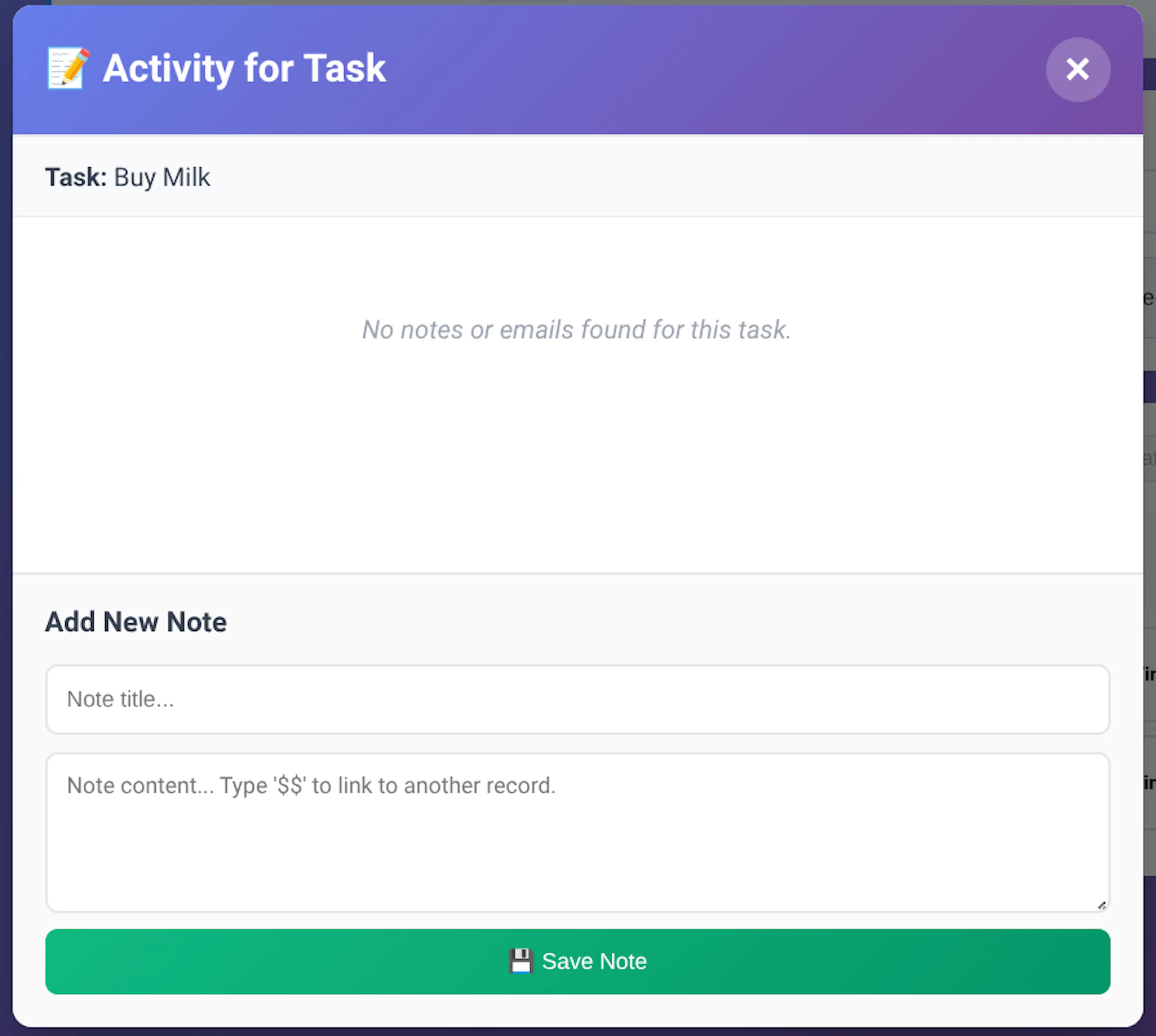
When you open the Notes feature, you are presented with a dedicated modal designed specifically for managing that task's activity stream.
This modal provides a clean list of all existing notes associated with the task. From this interface, you can:
-
Add New Notes: Quickly type a subject title and your extended content to add a brand-new entry to the timeline.
-
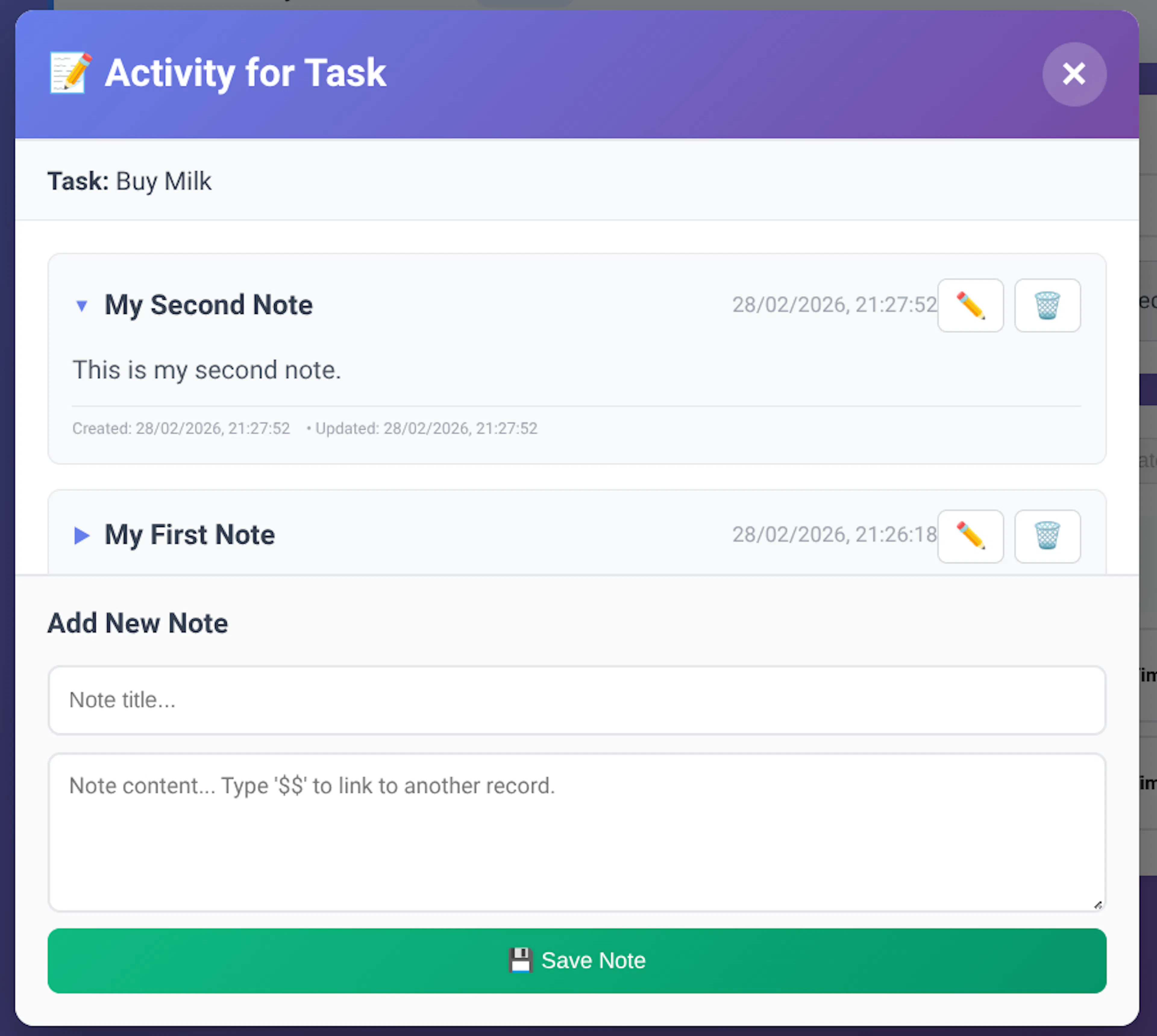
View Existing Notes: Scroll through the chronological history of updates, complete with date flags showing exactly when each note was created or modified.
-
Edit and Delete: If you made a mistake or a note is no longer relevant, you can easily open a note to edit its contents (using the ✏️ icon) or permanently delete it (using the 🗑️ icon) right from the list.
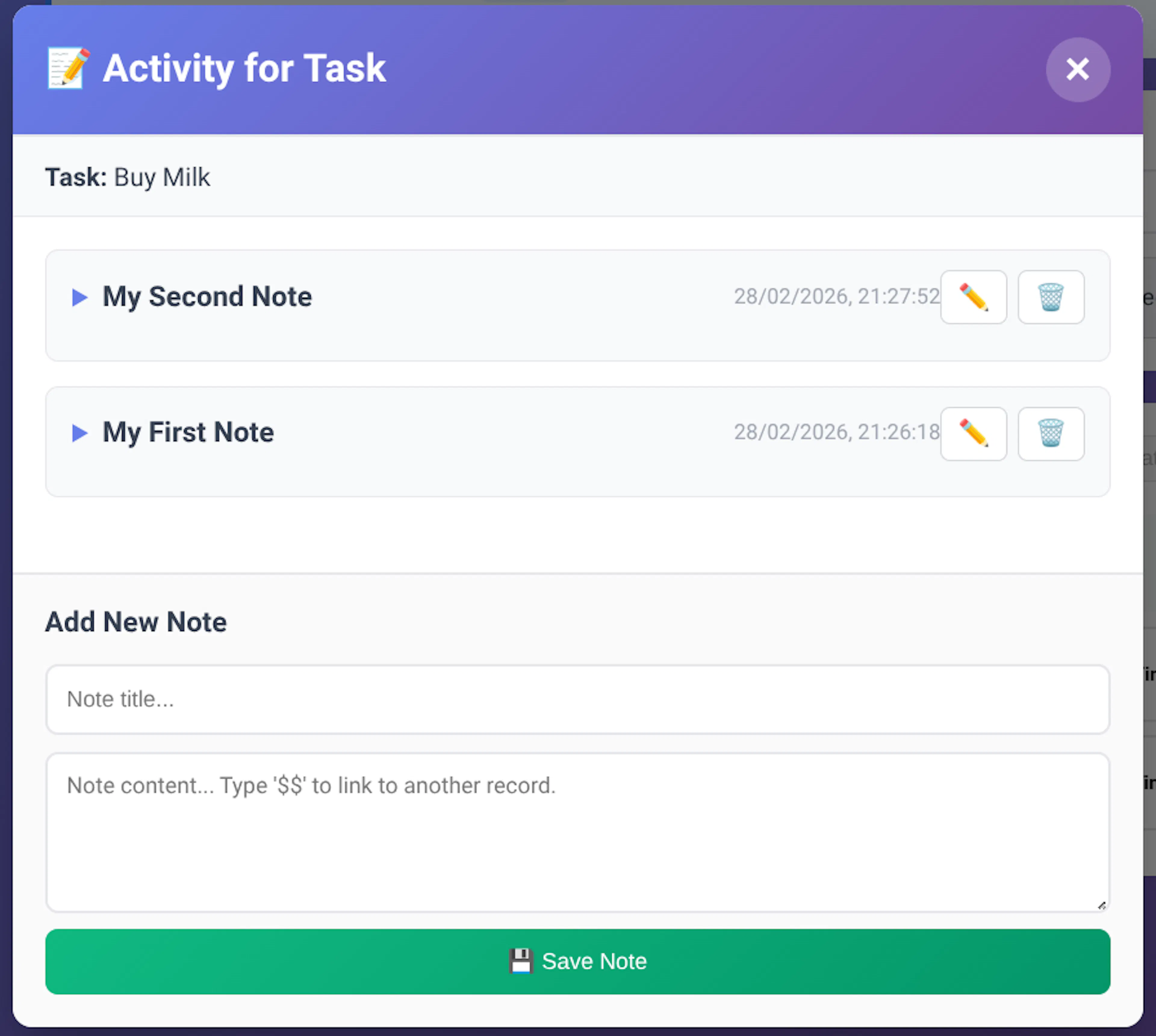
Notes Modal With Notes:
Notes are displayed in reverse date order.
Notes Modal with Open Note: