Bookmarks View — Operating Manual
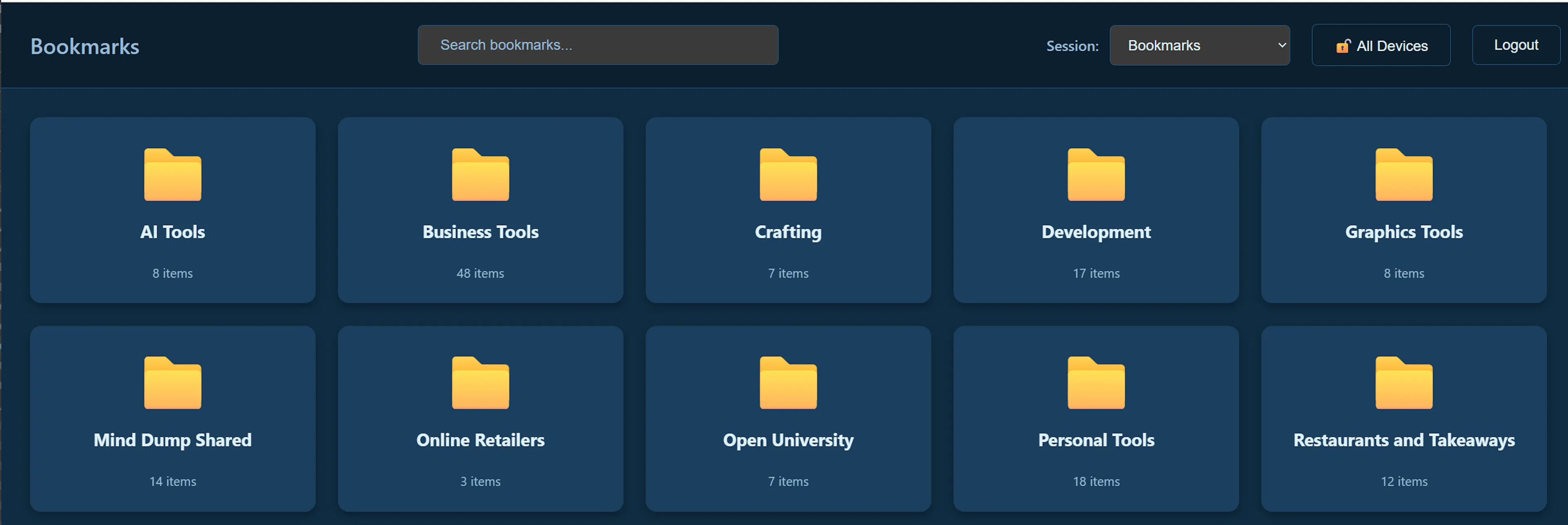
Mind Dump Bookmarks (bookmarks.html) is a dedicated, read-focused interface for browsing web links stored in a Web Clipper session. It presents your bookmark session as a visual folder hierarchy: parent tasks act as folders, and child tasks with a populated Website URL field appear as clickable bookmarks.
This manual covers setup, the task model, capture workflows (manual, browser extension, and scratch pad), and day-to-day use of the Bookmark View.
1. Prerequisites and Initial Setup
Bookmarks depend on two configuration steps before the Bookmark View is useful: a Web Clipper session and a Default Bookmark Session in Settings.
Step 1 — Create a Web Clipper session (Session Manager)
-
Open the main Mind Dump app.
-
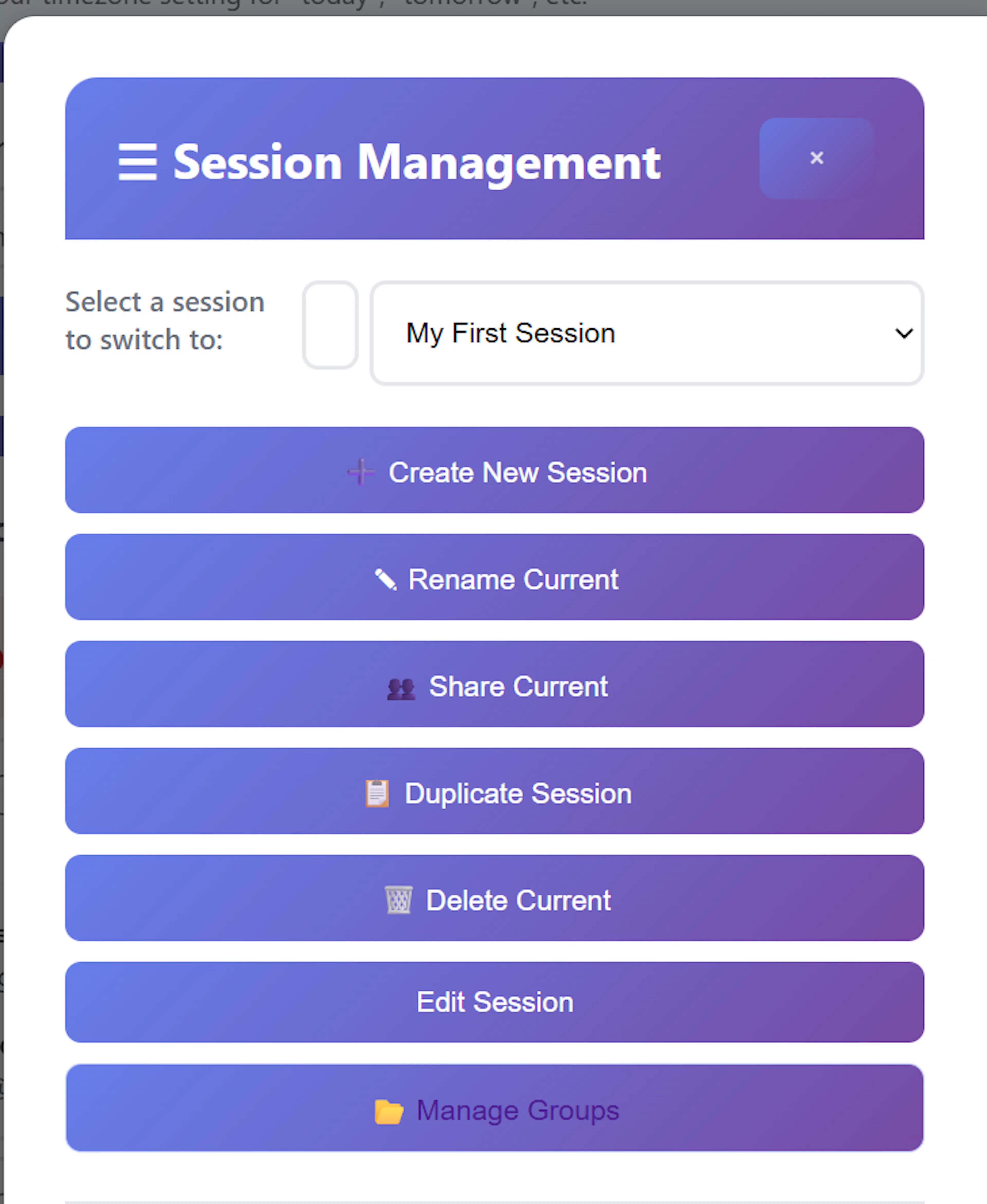
In the sidebar, click Manage Sessions (☰ Manage Sessions).
-
Click Create New Session.
-
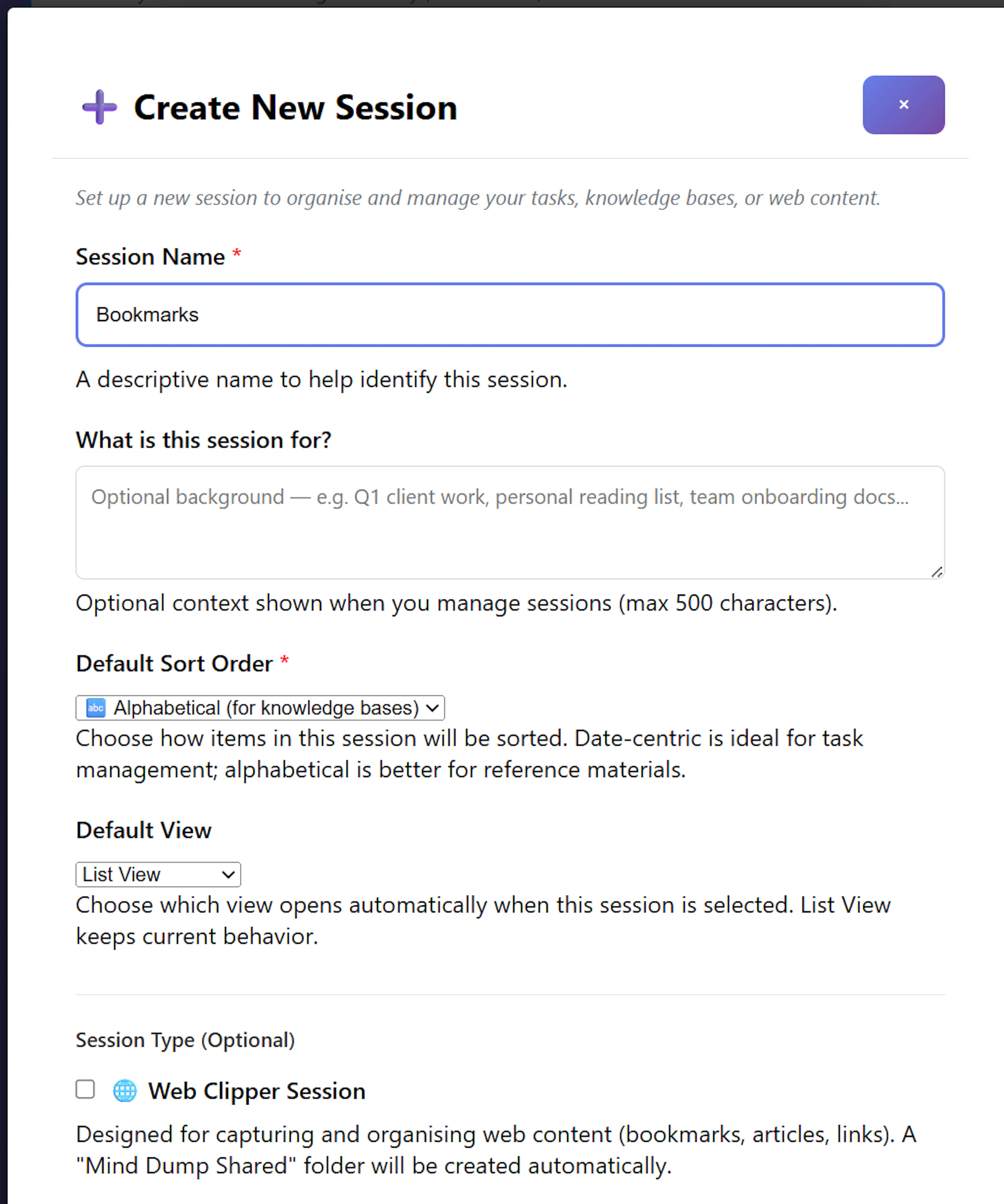
Enter a session name (for example,
My Bookmarks). -
Change the Default Sort Order to 'Alphabetical (for knowledge bases)'
-
Under Session Type (Optional), enable 🌐 Web Clipper Session.
When this flag is enabled, Mind Dump automatically:
-
Creates a Website custom field (type: URL) on the session — this field holds each bookmark’s web address.
-
Creates a root-level folder task named Mind Dump Shared — used for links shared from other Mind Dump features (for example, shared reports).
-
-
Complete session creation (Save Session and Exit or Create & Guided Configuration).
You can also enable Web Clipper on an existing session: Manage Sessions → Edit Session → 🌐 Web Clipper Session, then save.
Note: Only sessions marked as Web Clipper appear in the Bookmark View session dropdown and in the Default Bookmark Session setting.
Step 2 — Set the Default Bookmark Session (Settings)
-
Open Settings -> Global Settings
-
In the Default Bookmark Session section, choose your Web Clipper session from the dropdown.
-
The dropdown lists web clipper sessions only.
-
Choose -- None (Always ask me) -- if you prefer to pick a session manually each time.
-
-
Save your settings.
When configured, the Bookmark View loads this session automatically after login. The same preference is returned at login and cached locally for faster startup.
Step 3 — Browser extension (optional, for web capture)
To clip pages from the browser into the scratch pad:
-
Settings → Browser Extension
-
An administrator must configure the API Base URL (admin only).
-
Download and install the extension package (see
extension_user_readme.txt). -
Generate an Extension Access Key and use it to log in to the extension popup.
-
-
The extension saves content to your scratch pad (not directly into a bookmark folder). You then process scratch items into your Web Clipper session — see Section 5.
2. Task Hierarchy: Folders and Bookmarks
The Bookmark View maps Mind Dump’s standard parent/child task tree onto a folder-and-link model.
Roles in the hierarchy
| Concept | What it is in Mind Dump | What it looks like in Bookmark View |
|---|---|---|
| Folder | A parent task used to organise links | 📁 folder card; click to drill down |
| Bookmark task | A task with a value in the Website (URL) custom field | Bookmark card; click image/title area to open the URL |
| Hybrid item | A task that has both a URL and child tasks | Combined card: image opens the link; 📁 button opens the folder |
Rules that govern display
A bookmark task exists when the Website field has a value.
Tasks without a URL are treated as folders (or empty placeholders), not as bookmarks.
A folder appears on the Dashboard (session root) only when it has at least one bookmark descendant or is itself a link:
-
Shown at root: folders that have child tasks, or hybrid items (URL + children).
-
Hidden at root: empty folders (no URL, no children) and pure bookmarks (URL but no children — these appear inside their parent folder, not on the Dashboard).
Inside a folder, all child items are shown: subfolders, bookmarks, and hybrids, sorted alphabetically with folders listed before bookmarks.
A folder can also be a link.
If a parent task has a URL in the Website field and has child tasks, it renders as a hybrid card: you can open the URL from the card image, or open the folder from the 📁 control.
Automatic folder: Mind Dump Shared
Every Web Clipper session receives a root folder, Mind Dump Shared. Mind Dump uses this folder when other features (for example, Report Builder shared links) add bookmarks to your default session.
Organising folders manually
In the main app, create primary tasks (no parent) or subtasks under an existing folder in your Web Clipper session. Name them as you would name bookmark folders (Development, News, Recipes, etc.). Add bookmark tasks as subtasks under the appropriate folder.
3. Creating Bookmarks
Bookmarks can be created in three main ways.
A. Manually in the main app
-
Switch to your Web Clipper session in Mind Dump.
-
Create a subtask under the target folder (or at root if appropriate).
-
Set the task name (the bookmark title).
-
Fill in the Website URL custom field.
When a URL is saved on a task, Mind Dump automatically attempts to fetch and store a favicon. The new item appears in the Bookmark View after refresh or navigation.
B. Web Clipper browser extension → scratch pad → process
The extension does not write directly into bookmark folders. It sends captured content to the scratch pad:
| Extension action | What is saved to scratch |
|---|---|
| Save Page to Scratch Pad | {page title}: {page URL} |
| Save Clipboard to Scratch Pad | Clipboard text |
| Save Note to Scratch Pad | Typed note text |
After clipping:
-
Open Process Scratch Items from the main app sidebar.
-
Process the item into your Web Clipper session; explained in section 5 below.
For page clips, the URL is extracted from the scratch text and placed in the Website field when the destination is a Web Clipper session.
C. Scratch pad entry (any source) → Add as Sub-Task
Scratch items can come from the extension, email capture, SMS, Mobile PWA app or other integrations. Use Add as Sub-Task to place a scratch item under an existing folder task — this is the primary workflow for turning a clipped page into a bookmark inside a specific folder.
D. Directly from the Bookmark View (bookmarks.html)
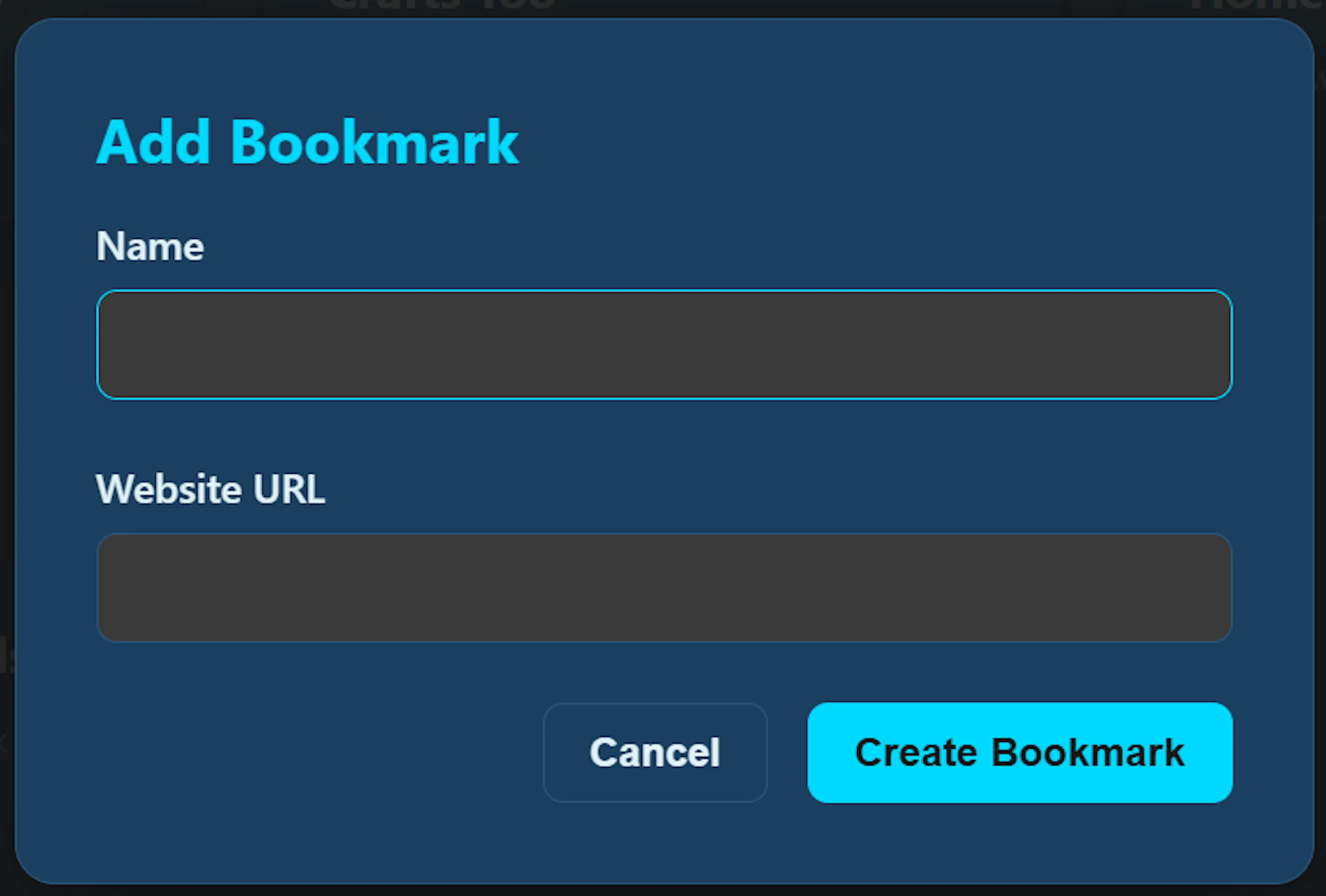
When a Web Clipper session is loaded, right-click on the empty background of the bookmark grid (not on an existing card) to open a creation menu:
| Action | Fields | Result |
|---|---|---|
| Add Bookmark | Name and Website URL (both required) | Creates a bookmark task under the current folder, or at session root on the Dashboard |
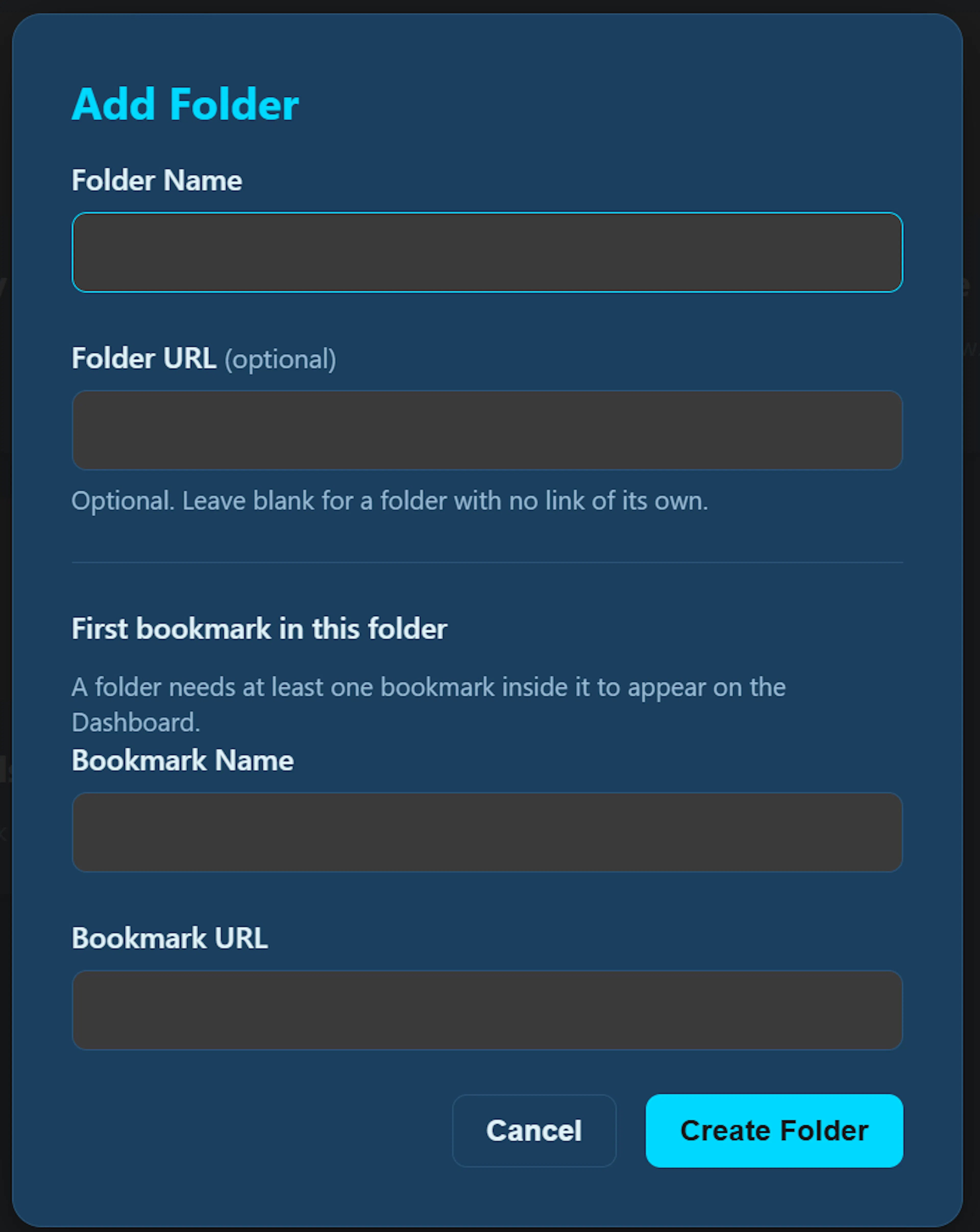
| Add Folder | Folder name; optional folder URL; required first bookmark name and URL | Creates a folder task plus one child bookmark (required so the folder appears on the Dashboard) |
New items are placed under the folder you are currently viewing. On the Dashboard, they are created at the session root. Favicons are fetched automatically when a URL is saved. The grid updates immediately without refreshing the page.
This menu is not available while search is active or when no session is selected.
4. Favicons and Placeholder Icons
When a bookmark task receives a URL, Mind Dump tries to retrieve a site favicon for the large icon on the bookmark card.
How favicons are fetched
-
The server extracts the domain from the URL.
-
It requests the favicon from Google’s Favicon Service (
https://www.google.com/s2/favicons?domain=…&sz=64). -
If successful, the image is stored as base64 PNG in the task and displayed in the Bookmark View.
This runs automatically when:
-
A URL custom field is saved on a task in the main app (direct task, subtask, or task edit).
-
A scratch item is converted to a sub-task in a Web Clipper session and a URL is extracted
-
Other server-side bookmark-creation paths that call the same favicon helper.
Placeholder when favicon is unavailable
If no favicon can be fetched or stored, the Bookmark View shows a placeholder marker instead of an image:
-
A coloured square (
.favicon-placeholder) displaying the first letter of the domain (uppercase). -
If no domain is available, a 🔗 symbol is used.
A smaller domain initial also appears next to the domain name in the card footer.
5. Scratch Pad Processing
Process Scratch Items is the inbox for turning scratch pad entries into structured tasks — including bookmark tasks in a Web Clipper session.
Accessing scratch processing
- Main app sidebar: 📋 Process Scratch (n)
Each scratch item shows action buttons. For bookmark workflows, these are the most relevant:
| Button | Purpose |
|---|---|
| ⚙️ Process Task | Full modal: choose session, edit name, set custom fields, move to session (optionally as subtask via bulk flow) |
| 🔗 Add as Sub-Task | Quick path: pick session → pick parent folder task → create subtask |
| 🔗 Add URL to Task | Extract URL from scratch text and add it to an existing task’s URL field (does not create a new bookmark) |
Web Clipper sessions are marked with a 📎 prefix in session dropdowns where applicable.
Add as Sub-Task — bookmark workflow (recommended for clipped pages)
This is the workflow for adding a scratch item as a bookmark task under an existing folder:
-
On the scratch item, click 🔗 Add as Sub-Task.
-
Step 1 — Select a Session: choose your Web Clipper / bookmark session.
-
Step 2 — Find and Select the Parent Task: type at least 3 characters to search, then click the folder task that should contain the new bookmark.
-
Confirm the dialog.
What happens on the server (Web Clipper sessions):
-
The scratch item’s text is read.
-
If a URL (
http://orhttps://) is found, it is extracted from the task name and saved to the session’s Website URL field. -
Remaining text becomes the bookmark title; if nothing remains, the domain name is used.
-
A favicon fetch is attempted for the URL.
-
The scratch item is removed from the scratch pad.
The new task is a child of the folder you selected, so it appears inside that folder in the Bookmark View.
Process Task modal — alternative path
-
Click ⚙️ Process Task on a scratch item.
-
Select a Web Clipper session as the destination.
-
Custom fields load, including Website. For Web Clipper sessions, if the task name contains a URL, it is automatically extracted into the Website field and removed from the title.
-
Click ✅ Process & Add to Session to create a root-level task (unless you use bulk processing with a parent selected).
Use Bulk Process with Add as Sub-Tasks checked to process multiple clips into the same folder at once.
Typical end-to-end clipper flow
Browser page
    → Extension: "Save Page to Scratch Pad"
        → scratch pad entry: "Page Title: https://example.com/page"
            → scratch_process.html: "Add as Sub-Task"
                → Session: My Bookmarks
                → Parent: "Development" (folder task)
                    → New bookmark task under Development
                        → Visible in bookmarks.html
6. Using the Bookmark View
Open Bookmarks from the main app sidebar (bookmarks.html opens in a new tab) or navigate directly to /bookmarks.html.
Login
-
Sign in with your Mind Dump username and password.
-
Keep me logged in for 30 days extends the bookmark session (otherwise a shorter inactivity timeout applies).
-
After login, if a Default Bookmark Session is configured, that session loads automatically.
Main interface
| Area | Function |
|---|---|
| Session dropdown | Switch between your Web Clipper sessions |
| Search | Search all bookmarks in the current session by name or URL (minimum 3 characters; results show folder path) |
| Breadcrumb | Shows current session and folder path; click Dashboard or intermediate folders to navigate |
| Content grid | Folder cards, bookmark cards, and hybrid cards |
Instant Search
The bookmarks page has an instant search feature. The user just starts typing and the characters appear directly in the search box. This quickly locates matching bookmarks and folders.
Navigation
-
Dashboard — session root (top-level folders and hybrid links only).
-
Folder card — click to open the folder and see its children.
-
Bookmark card — click the image or main area to open the URL in a new tab (safe URL validation blocks dangerous schemes).
-
Hybrid card — click image to open URL; click 📁 to enter the folder.
-
🏠 Dashboard card — shown inside folders; returns to session root.
Context menu (right-click)
| Action | Folders | Bookmarks / Hybrids |
|---|---|---|
| Rename | ✓ | ✓ |
| Edit URL | — | ✓ |
| Open in New Tab | — | ✓ |
| Copy URL | — | ✓ |
| Delete | ✓ (when empty) | ✓ |
Deleting a folder with children raises an error to prevent you from accidently deleting important bookmark links.
Appearance
Bookmark colour themes are configured in Settings → Bookmarks Colour Schemes and applied when you open the Bookmark View.
7. Quick Reference
Setup checklist
-
Create session with Web Clipper Session enabled (Session Manager)
-
Verify Website URL field exists on the session (auto-created)
-
Create folder tasks (parent tasks) for organisation
-
Set Default Bookmark Session in Settings
-
(Optional) Install browser extension and generate Extension Access Key
“Why don’t I see my folder on the Dashboard?”
The folder has no child tasks yet and no URL on the folder task itself. Add at least one bookmark subtask (with a Website URL), or give the folder task a URL to make it a hybrid.
“Why isn’t my task a bookmark?”
The Website custom field is empty. A task name alone does not make a bookmark — the URL must be in the URL-type custom field.
“Why is my clipped page not a bookmark yet?”
The extension saves to the scratch pad. Open Process Scratch Items and use Add as Sub-Task (into a folder) or Process Task (into the Web Clipper session with URL extraction).